Referencing Files
The Files pane on the right shows your workspace. Use it to point Claude to specific files, copy paths, and keep track of what's where.
When do I use this?
Whenever you want to point Claude to a specific file without copying the whole content. Or when you're telling Claude what to change and want to make sure he's working on the right file.
What the Files pane looks like
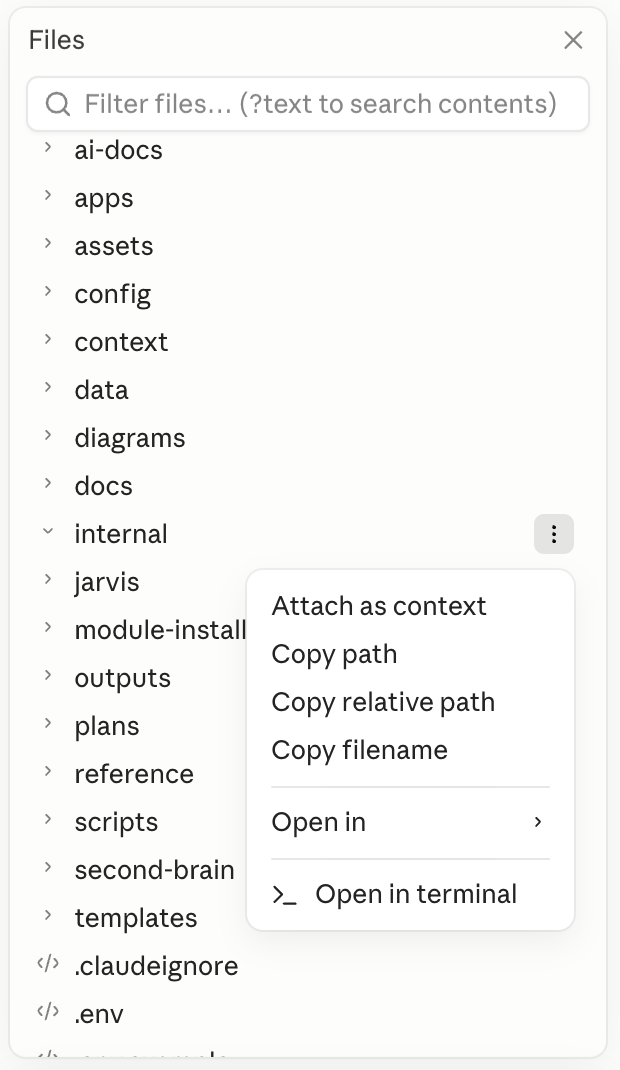
Three dots on any file or folder: the menu opens.
Two ways to reference a file
Drag & Drop
Drag a file from the Files pane directly into the chat above. This does not work in the terminal below, only in the chat area.
Copy path
Click the three dots on the file, then select Copy path. Paste the copied path into your message. Works everywhere, including the terminal.
You give instructions. Claude makes the changes.
Never open files yourself and edit them directly. Tell Claude what should change, he handles it. This keeps context clean and avoids conflicts.
Right: "Change the price in outputs/offer.md to 2,500 EUR."
Wrong: Open the file, edit it yourself, let Claude work in parallel.
Screenshots & external files
Files don't need to be inside the project folder. Claude finds them outside too. Just describe where they are:
"The PDF is at Downloads/offer-mueller.pdf."
macOS saves screenshots automatically to the Desktop. No need to move them into the project folder first. Just tell Claude where they are, he reads them directly from there.